pdfFiller Edit, fill, sign PDF
airSlate, Inc.Productivity
3.93.75K Reviews
- Version
- 10.53.22790
- Installs
- 5.00M
- Age Rating
- Everyone
Screenshots
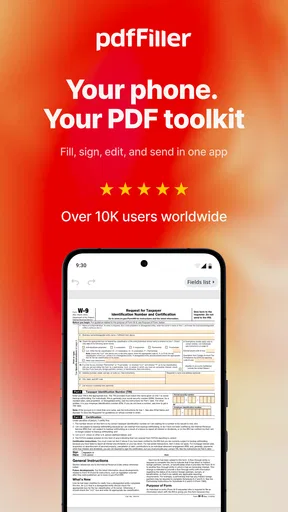
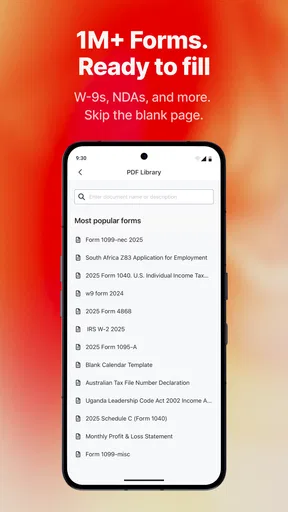
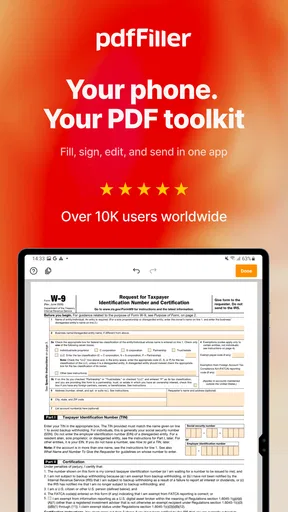
Our Review of pdfFiller Edit, fill, sign PDF
 Analysis by Appyee
I judge a PDF app less by how many tools it lists than by whether it helps me finish a document without turning a two-minute task into a small project. pdfFiller Edit, fill, sign PDF is aimed at that practical middle ground: working with forms, making changes, and handling signatures from a phone. It is a productivity app from airSlate, Inc., and its focus makes sense for anyone who regularly receives documents that need attention rather than just reading.
Speed expectations and everyday document work
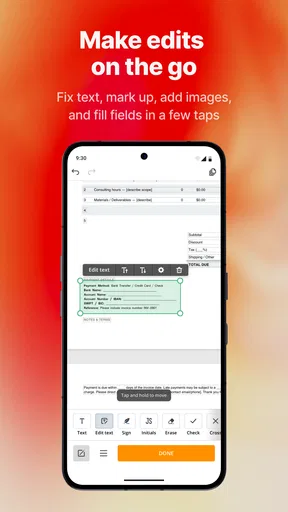
For routine tasks, the appeal is straightforward: open a PDF, make the change or fill the fields, then share it. I would expect that kind of focused workflow to feel quicker than moving a document between a reader, a separate signing tool, and a desktop editor. The advantage is not that every edit becomes effortless; it is that common steps are gathered in one place.
A realistic example is getting a school form or service agreement while away from a computer. I can review the pages, enter the requested details, add a signature, and send the finished file without printing it. That is where mobile PDF editing earns its keep. For a document that needs careful layout work or extensive rewriting, though, I would still prefer a larger screen and a full desktop editor.
What feels fast—and what can slow the workflow
Typing into an existing form and reusing saved details can cut down repetitive work. A saved signature also avoids recreating it every time. Those small conveniences matter more than flashy editing options when the task is simply to complete and return a document before moving on.
There is a trade-off: a phone screen leaves less room to inspect small text, align an edit, or catch a field that was missed. I recommend zooming in before signing, then checking the completed pages from beginning to end. A quick review is especially worthwhile when a form has several similar fields or a signature box close to other printed text.
Busy sessions, stability, and recovery
PDF work can become demanding when a document has many pages, several edits, and multiple people involved. In that situation, I would treat the app as a convenient mobile workbench, not assume that a long sequence of changes is automatically safe just because it happens inside one tool. Save or share a completed stage when appropriate, and reopen the file to make sure the version you intend to send is the one you are viewing.
Sharing also changes the workflow: a document sent for review or signature may need follow-up, so it helps to keep track of which copy is final and which is still awaiting action. I would avoid editing multiple nearly identical copies without a clear naming habit. That is a simple way to reduce the chance of sending an older draft by mistake.
Reliability and sensible handling
I like that the app brings document editing and signature tasks together, but I would still review important files before distributing them. Check names, dates, filled fields, and the signature placement. If a document is legally or financially important, a final visual pass is sensible regardless of which PDF tool you use.
The app is rated for Everyone, and it is free to install, with optional in-app purchases. Its average rating is 3.9 from around 26,000 ratings, and it has been installed over 5 million times. Those figures suggest that it has reached a broad audience, but they do not tell me whether a particular workflow will suit you; the best test is whether its editing and sharing approach fits the documents you handle.
Device limits and choosing the right tool
The current version is 10.50.22778 and requires Android 6.0 or later. That makes it accessible to a wide range of Android devices, though the experience still depends on the phone or tablet in your hand. If you often work with dense pages, detailed layouts, or long documents, a tablet or computer gives you more room to inspect changes. On a smaller phone, I would save the most detailed editing for when I can check the result comfortably.
Compared with a basic PDF reader, this app is for people who need to change or complete documents, not only view them. Compared with a desktop PDF editor, it puts convenience ahead of a spacious editing environment. And if your needs are limited to adding a quick signature once in a while, a simpler signing option may be enough; paying for tools you rarely use is not automatically worthwhile.
Who will get the most from it
I see the strongest fit for freelancers, students, parents, and anyone who regularly receives forms or agreements by email and wants to return them without printing. It is also useful when a task involves several steps—filling in fields, signing, and sharing—because keeping those actions together can reduce app switching. If you mostly read PDFs, rarely sign anything, or need precise page design, you may be better served by a lightweight reader or a full desktop editor instead.
One practical tip is to prepare reusable details and a signature before a time-sensitive form arrives, then take a moment to verify the final file before sending. For shared documents, I would also confirm that I am working on the copy meant for review rather than an earlier version. These habits make mobile work less error-prone without relying on speed alone.
Making PDF Handling a Breeze
Right off the bat, pdfFiller Edit, fill, sign PDF impresses with its intuitive interface. I mean, who wants to spend hours figuring out how to use an app? Not me, and probably not you either. The app is designed with user-friendliness in mind, making it super easy to navigate. Whether you're a tech whiz or a complete newbie, you’ll feel right at home.
Editing PDFs Like a Pro
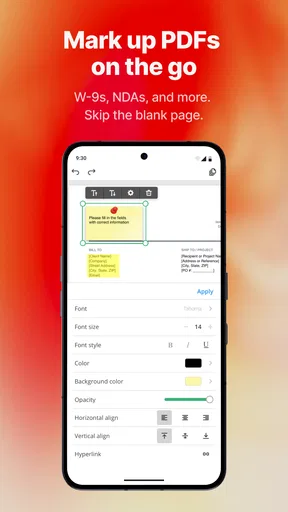
Let’s talk about editing. Gone are the days when you needed to jump through hoops to make a simple change to a PDF. With this app, you can edit text, images, and even add links effortlessly. The editing tools are robust yet straightforward, allowing you to tweak your documents as needed without breaking a sweat.
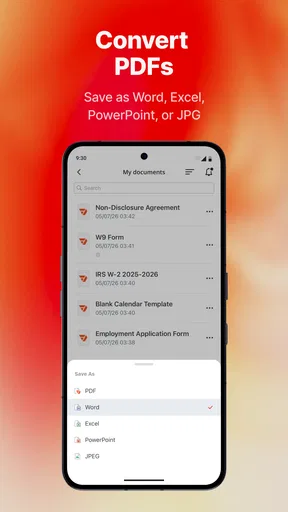
What’s more, the app supports a wide variety of formats. So, whether you’re working with a Word document, Excel sheet, or an image file, you can convert them into PDFs and edit them seamlessly. Talk about versatility!
Filling Forms Without a Hitch
Now, let’s discuss filling out forms. We’ve all been there, struggling to fill a PDF form without printing it out. It’s a hassle, right? Well, not with this app. You can easily fill out forms directly within the app. The fields are interactive, allowing you to type in text, select checkboxes, and even add dates without any fuss.
One of my favorite features is the ability to save your frequently used information. This means you don’t have to repeatedly enter the same details over and over again. Just a few taps, and you’re done!
Signing PDFs Made Simple
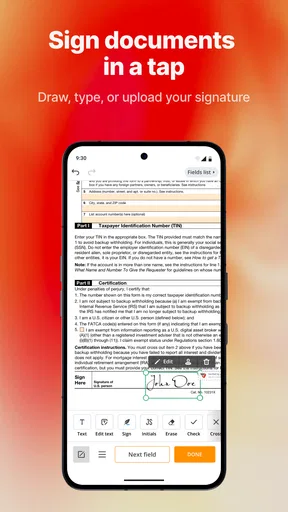
Signing documents has never been easier. Whether you need to add a signature to a contract or a simple form, this app has got you covered. You can create your signature by drawing it with your finger, uploading an image, or typing it out. The versatility here is just fantastic.
Plus, you can save your signature for future use, which is a huge time-saver. No more scrambling to find your signature image every time you need to sign something. It’s right there at your fingertips, ready to go.
Collaboration and Security
In today's fast-paced world, collaboration is key. pdfFiller Edit, fill, sign PDF makes it easy to share documents with others. You can send documents for review or signatures and track their progress all within the app. It’s like having a personal assistant managing your documents.
Security is also a top priority. Your documents are encrypted, ensuring that your sensitive information remains safe. You can even set permissions and access levels for shared documents, giving you full control over who sees what.
Wrapping Up the Experience
All in all, pdfFiller Edit, fill, sign PDF is a game-changer for anyone who regularly deals with PDFs. Whether you’re editing, filling, or signing documents, this app makes the process smooth and efficient. It's packed with features that cater to both personal and professional needs, making it a must-have tool in your digital arsenal.
So, if you’re tired of wrestling with PDFs, give this app a shot. You might just find yourself wondering how you ever managed without it.
A note on cost and commitment
Because the app is free to install but offers in-app purchases ranging from $5.99 to $179.99 per item, I would start by testing the tasks I actually need rather than assuming every paid option is necessary. The free entry point makes it easy to see whether the editing flow suits me, while the wide spread in purchase prices is a reason to check the specific terms shown in the app before committing. For occasional form filling, I would weigh the cost against how often the saved time matters.
My overall take is that this is a capable option when PDFs are part of your regular errands or work routine, especially when signing and sharing are as common as reading. It is less compelling as a general document editor for someone who rarely handles forms, and it cannot remove the small-screen compromises of phone-based editing. If you want a mobile place to complete and circulate PDFs, it is worth trying; if precision and extensive redesign are your priority, I would reach for a larger-screen tool.
Verdict
Strengths of pdfFiller Edit, fill, sign PDF
- User-friendly interface for quick navigation.
- Supports a wide range of document formats.
- Efficient e-signature capabilities.
- Cloud integration for easy access.
- Collaborative features for team editing.
Limitations of pdfFiller Edit, fill, sign PDF
- Limited free version features available.
- Occasional lag with large documents.
- Requires internet for most features.
- Subscription can be pricey for some.
- Basic editing tools might be insufficient.
Similar Picks in This Category
View All
Google Calendar
Google LLC4.6

Google Drive
Google LLC4.3

Google Assistant
Google LLC3.9

Microsoft OneDrive
Microsoft Corporation4.6

Samsung Calendar
Samsung Electronics Co., Ltd.4.1

Microsoft OneNote: Save Notes
Microsoft Corporation4.6
Frequently Asked Questions
What features does pdfFiller offer for editing PDFs?
pdfFiller provides a comprehensive suite of tools for editing PDFs. Users can add text, images, and annotations, as well as highlight, blackout, or erase content. The app also allows for merging documents, adding page numbers, and creating fillable forms, making it a versatile choice for personal or professional use.
Can I use pdfFiller to sign documents electronically?
Yes, pdfFiller includes an e-signature feature that allows users to sign documents digitally. You can create your signature using a mouse, stylus, or by uploading an image of your handwritten signature. This feature ensures that your signed documents are legally binding and secure.
Is pdfFiller compatible with cloud storage services?
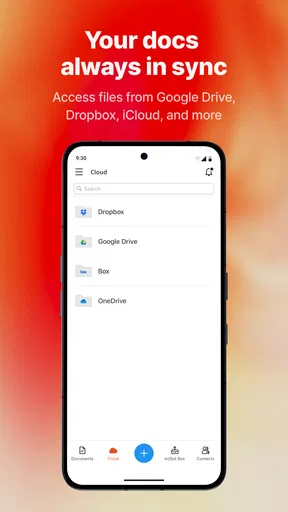
pdfFiller integrates seamlessly with multiple cloud storage services, including Google Drive, Dropbox, OneDrive, and Box. This compatibility allows users to import and export documents directly, facilitating easy access to files from any device with an internet connection.
Does pdfFiller offer any security features for sensitive documents?
Security is a crucial aspect of pdfFiller. The app uses 256-bit SSL encryption to protect your data. Additionally, it offers features like password protection for documents and the ability to set permissions, ensuring that only authorized users can view or edit your files.
Is there a cost associated with using pdfFiller?
pdfFiller offers a range of subscription plans, including monthly and annual options. While the app provides a free trial to explore its features, certain advanced functionalities require a paid subscription. Pricing is competitive, and plans are designed to cater to both individual and business needs.
